The file command in Linux is used to determine the MIME encoding (e.g. “image/jpeg; charset=binary”) or file type (e.g. “ASCII text”) for the target file.
Tutorial Details
| Description | Determine file type |
| Difficulty Level | Low |
| Root or Sudo Privileges | Yes (for one command) |
| OS Compatibility | Ubuntu, Manjaro, Fedora, etc. |
| Prerequisites | file |
| Internet Required | No |
The result (stdout data) comes from the three sets of tests as follows:
- The filesystem test is used to determine the type of the file or whether the file is empty using the stat command result.
- Than magic test is performed to check the file for data in particular fixed formats.
- Lastly, the language test is used to search for particular strings that can appear anywhere in the first few blocks of a file.
Syntax of the File Command
The file command requires two arguments: one is the option, and the other is the filename.
$ file [OPTION] [FILENAME]Find the Type of the File
The following command will return the property or description of the referenced file (it will also work for files without extensions).
$ file file.txtOutput:

Printing only the File Type
From the above command, you can remove “file.txt:” from the output by just printing the “ASCII text” in brief mode using the “-b” flag.
$ file -b file.txt Output:

Printing the Type of Multiple Files
You can pass multiple files as an argument to the file command to print their properties.
$ file file.txt file.zip Output:

Listing the Files Type in the Current Working Directory
Replace “file.txt” with a “*” wildcard to print the property for all files and directories in the current working directory.
$ file *Output:

Listing the Files Type for the Target Directory
Following the previous command, you can specify the directory path and use the “*” wildcard to list all the file properties in the target directory.
$ file Documents/*Output:

Listing the Files Type for Specific Range
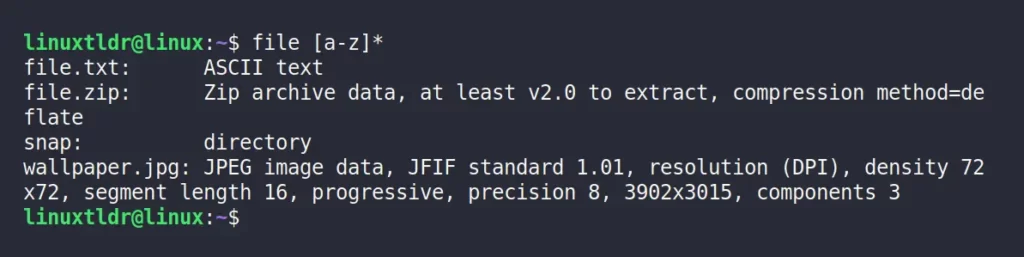
Specify the range of files within the square bracket “[RANGE]” to find the file property.
$ file [a-z]*Output:
Align the Output
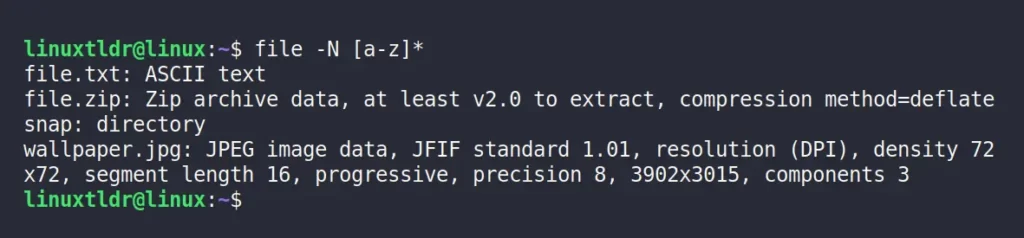
As you can see above, the padding makes the command unaligned, which can be aligned using the “-N” flag.
$ file -N [a-z]*Output:
Look Inside the Compressed File
The following command will look into the compressed “.zip” or “.tar.xz” files and determine the file property inside.
$ file -z file.zip
$ file -z file.tar.xz
Output:

Reading the Special Files
The “-s” flag allows you to read special files like “/dev/sda” or “/dev/null” files, as shown.
$ sudo file -s /dev/sda
$ file -s /dev/null
Output:

Reading the File MIME Encoding
The “-i” flag can be used to determine the MIME encoding for the target file.
$ file -i file.tar.xz
$ file -i file.txt
$ file -i photo.jpg
Output:

That was the end of the final example.
Bye bye! We’ll talk again in the next article.