The “login shell” is a term used to define which shell (like Sh, Bash, or Zsh) will be used to load the environment variables and shell configuration files when you log into an interactive session.
So, you can consider it the first process that starts with your system and runs under your user ID when you interactively log in to your system (like system boot, “su -” command, or SSH to remote system will get you in interactive login shell).
To fully comprehend the login shell in Linux, you must be familiar with how users get authenticated during system boot, interactive and non-interactive logins, and shell configuration files.
If you want a thorough grasp of the Linux login shell, read this article all the way through.
How Users Get Authenticated on System Boot in Linux
As you know, Linux is a multi-user operating system where multiple users can login and use the system at the same time.
To protect your system from unauthorized access, the getty program (short for “get tty“) is the first process that runs when your (init or systemd) system boots up.
The role of the getty program is to prompt login screen to allow you enter your username and password and then verify the specified information from the “/etc/passwd” file.
All the users and system account information is stored in “/etc/passwd” file like username, UID, GID, comments, home directory, and your default login shell.
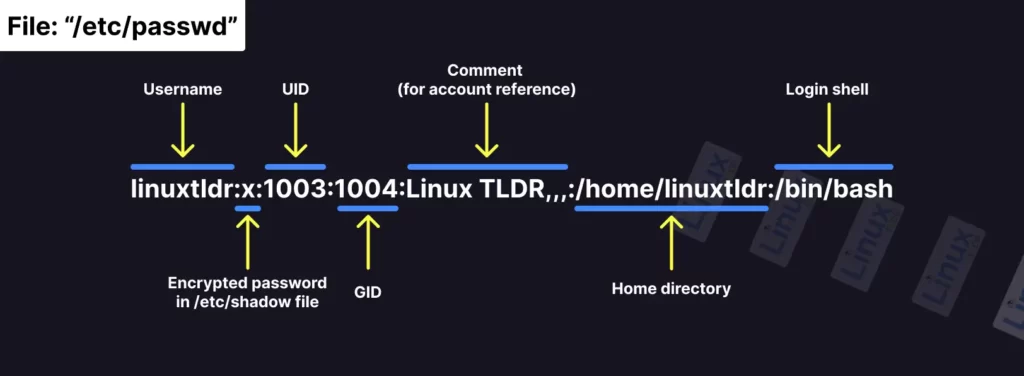
As shown in the preceding image, the last column is used to define the user login shell, which is the first program that runs when a user logs in.
If the last column is empty, the “/bin/sh” shell will be used by default as the user login shell.
Interactive Login vs Non-Login Shell
Now you understood that the “/etc/passwd” file store the users and system account information including user login shell.
Next, you need to understand the difference between the interactive login and non-login shell; although we have written a detailed guide on this topic, we will still give you a small overview.
So, let’s look at the difference between an interactive and a non-interactive shell:
Interactive vs Non-interactive shell
- Interactive shell: can be said to be when you directly interact with your shell from the command line.
- Non-interactive shell: can be said to be when you indirectly interact with your shell, like shell script.
Next, let’s look at the difference between a login and a non-login shell:
Login vs Non-login shell
The “login shell” is the first process that runs under the user ID after the system boots or when the “su -” command is executed. Even if you use SSH to connect to a remote system, it will be seen as an interactive login shell.
Aside from that, login-shell will load some configuration files (or profiles), such as “/etc/profile” and “~/.bash_profile” for Bash and “/etc/zprofile” and “~/.zprofile” for Zsh, into your current shell environment.
For example, I’ve edited a few of the configuration files and commented out their filenames to demonstrate how these files were loaded when you launched login-shell (via SSH).
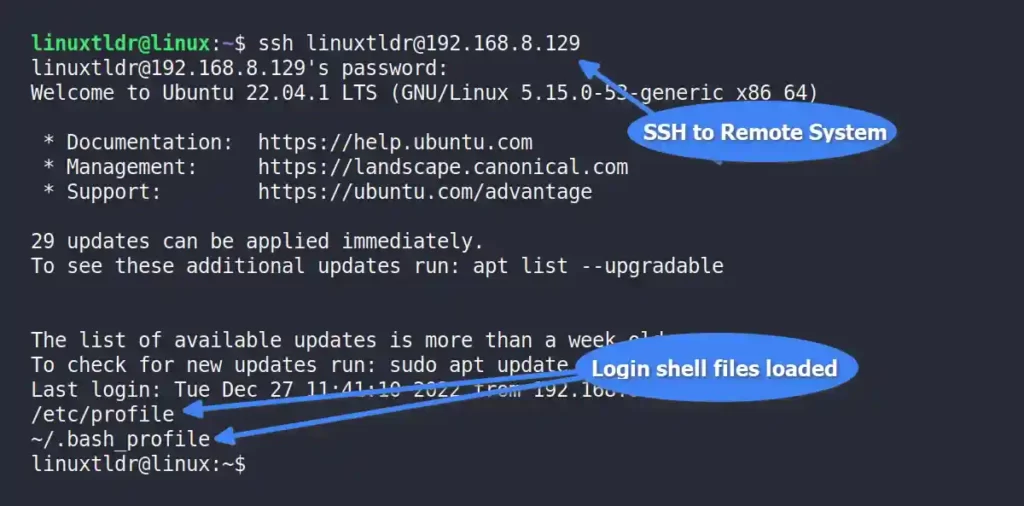
This file will only be read and run in your current shell environment once, when your system boots up. After that, you’ll interact with a non-login shell.
The “non-login shell” is when you start more than one shell in the same environment after the system boots. For example, you could run the bash command in your terminal or open a new tab in your terminal.
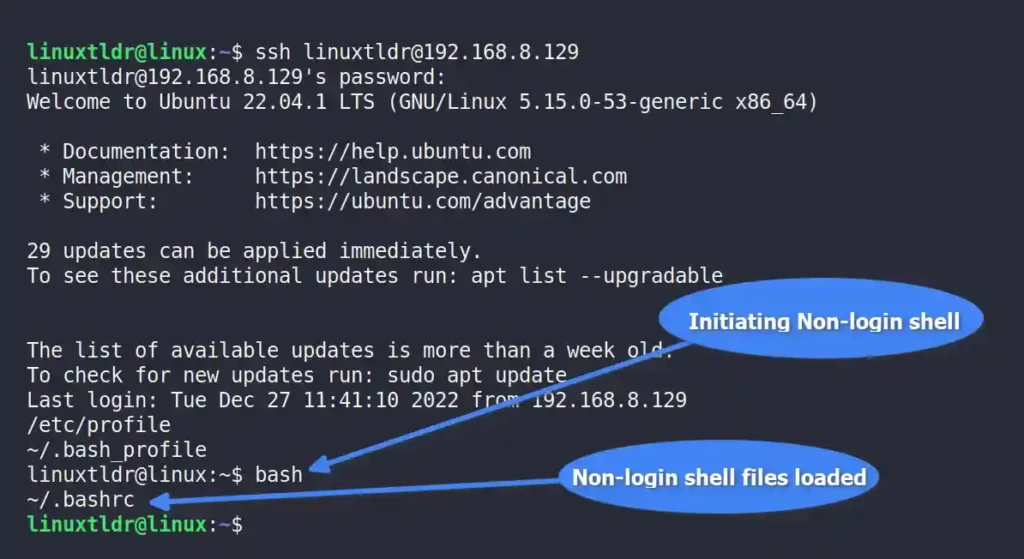
The non-login shell originates from the login shell, due to which it will get all the environment variables set by the login shell via the profile files. Although, the non-login can define their own environment variables through rc (resource configuration) files.
For the bash shell, it is usually “/etc/bash.bashrc” and “~/.bashrc” files, while for the zsh shell, it is “/etc/zshrc” and “~/.zshrc“.
How to Verify You Are in the Login Shell
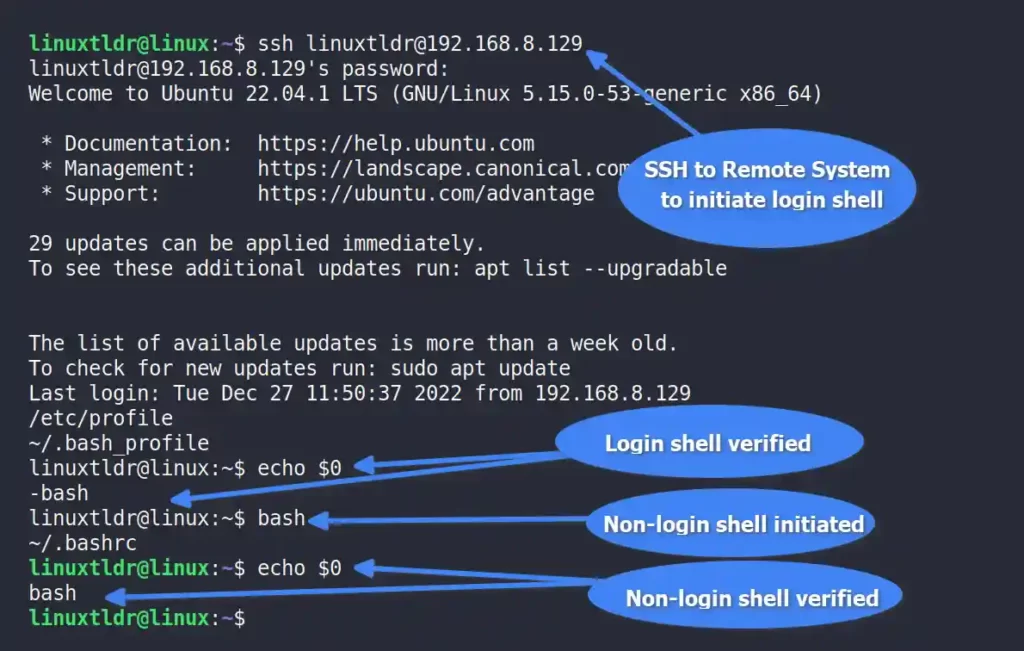
The login shell and non-login shell can be easily identified, especially if you are using the Bash shell. So, if you are using the login shell, then the “-” character is prepended to the shell executable (ex: “-bash“), while for the non-login shell, it would normally be “bash“.
Or you can execute the following command to check whether you are using the login or non-login shell:
$ echo $0Output:
Final Tips!
Although, this article gives you a grasp on Login Shell, I also strongly recommend that you visit the referenced links in this article to learn more about them.
If you have any questions or problems while understanding any point, feel free to ask them in the comment section.